

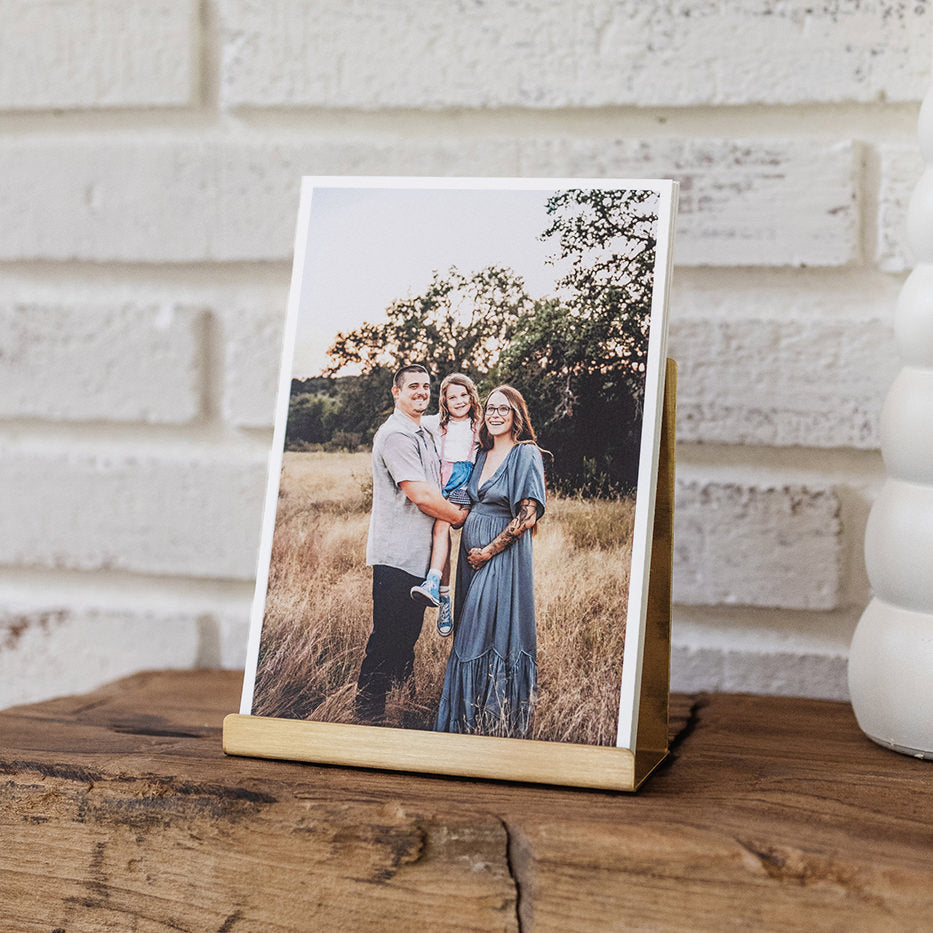
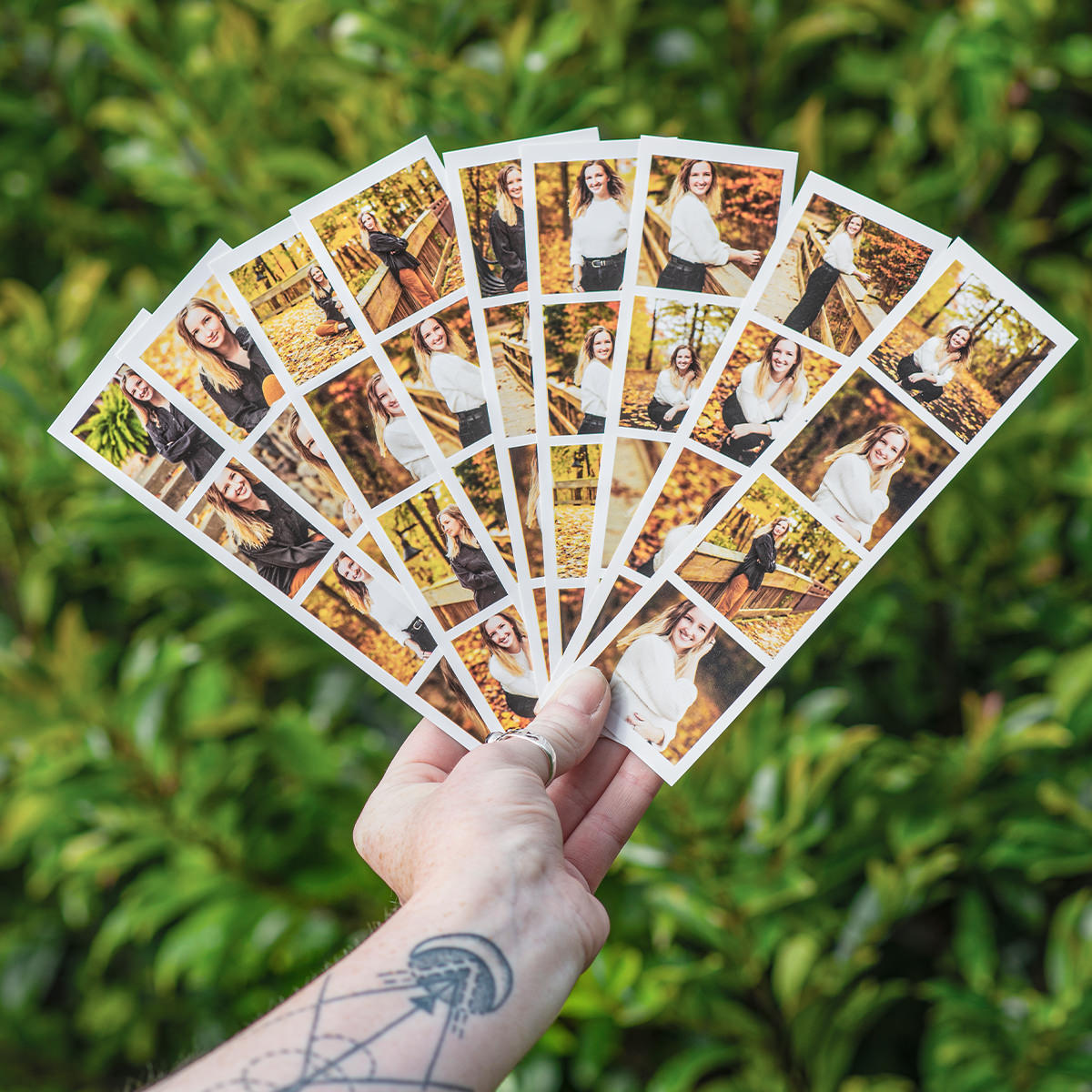

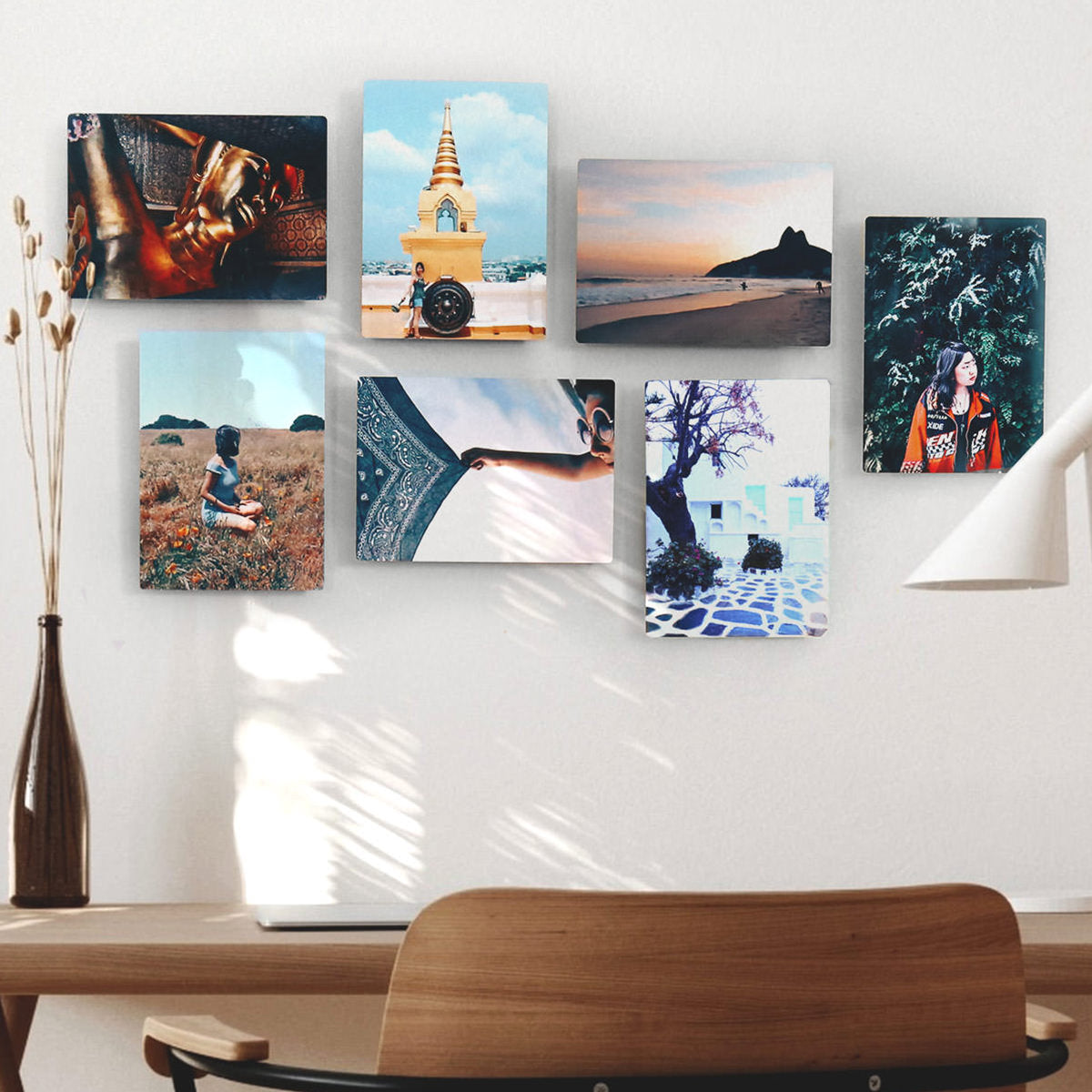
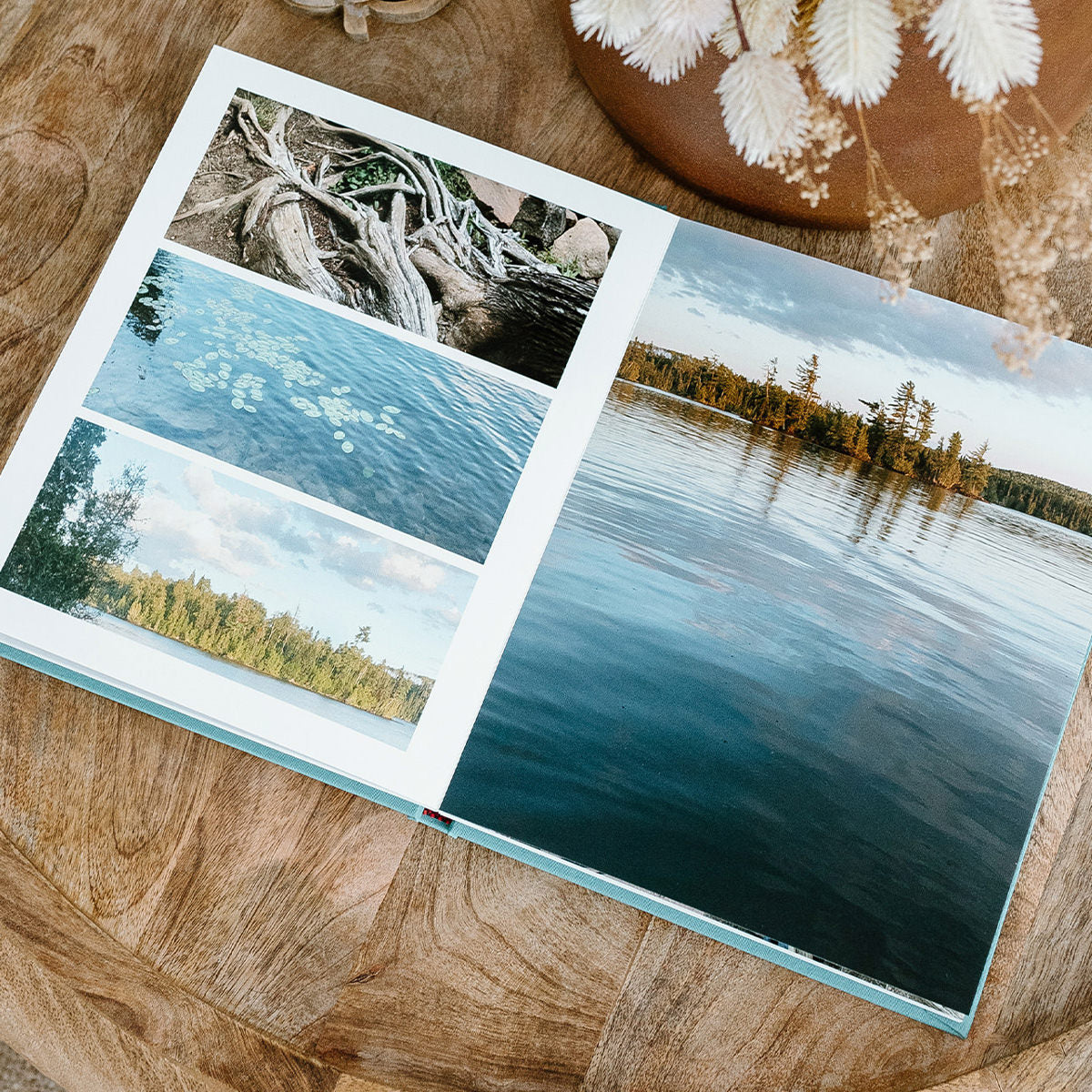
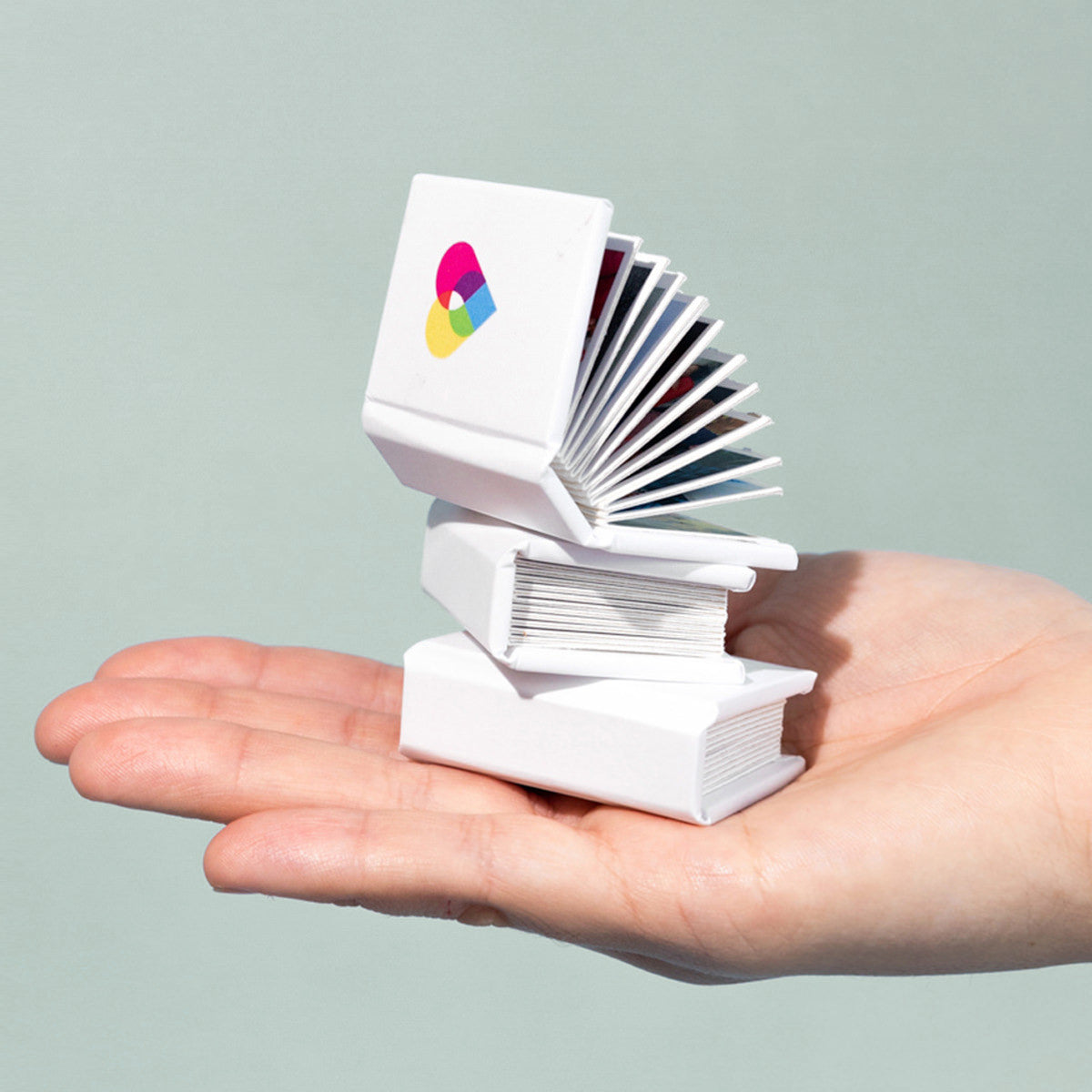
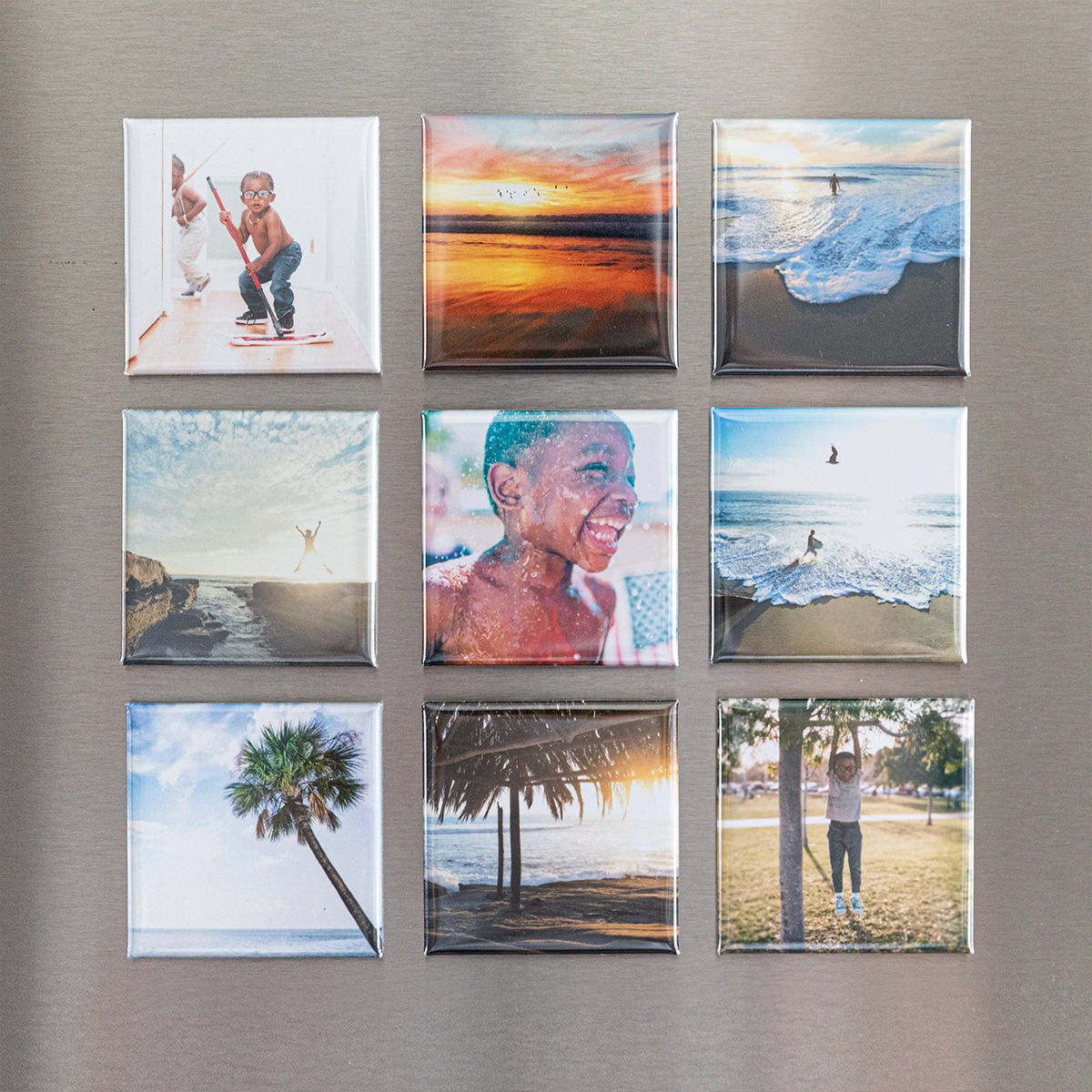




Where to Order
If you’re on an iPhone, we recommend downloading the Social Print Studio app from the App Store for the best experience! If you’re on a computer or an Android, the website is the best option.

Getting Started
When you upload photos on the website, they will appear automatically in the calendar editor. If you prefer to have the photos appear in the Photo panel and manually add them to calendar dates, toggle Autofill off.

Tips for Ordering
-
It’s helpful to be on wifi to make a calendar.
-
We recommend uploading 50 photos at a time.
-
Our uploader requires photos at least 612 x 612 pixels in JPG, PNG, and HEIC format
-
Save as you go. To save, hit the “Save Project” button. A link to your project will be emailed to you.
-
Collaborate! Once you save a project, you can share the link with anyone you want to upload photos.
Ordering Multiple Calendars
To create a copy you can edit independently, select Clone / Copy under Project Settings. It will open as a new tab, and you can save and edit it independently. This is useful if you want to create two projects that are very similar without needing to remake it twice.

If you’d like an exact copy of the calendar you’re creating, you can easily adjust the quantity in the cart.
Product Details
Calendars are created in a professional photo lab with archival-quality ink.
-
Printed on 170gsm photo paper.
-
Pages measure 2.69 x 3.22”

Stand Options
There are 3 options when ordering a Daily Calendar. You can add, change, or remove a stand at any point while making a calendar by clicking the gear icon.
-
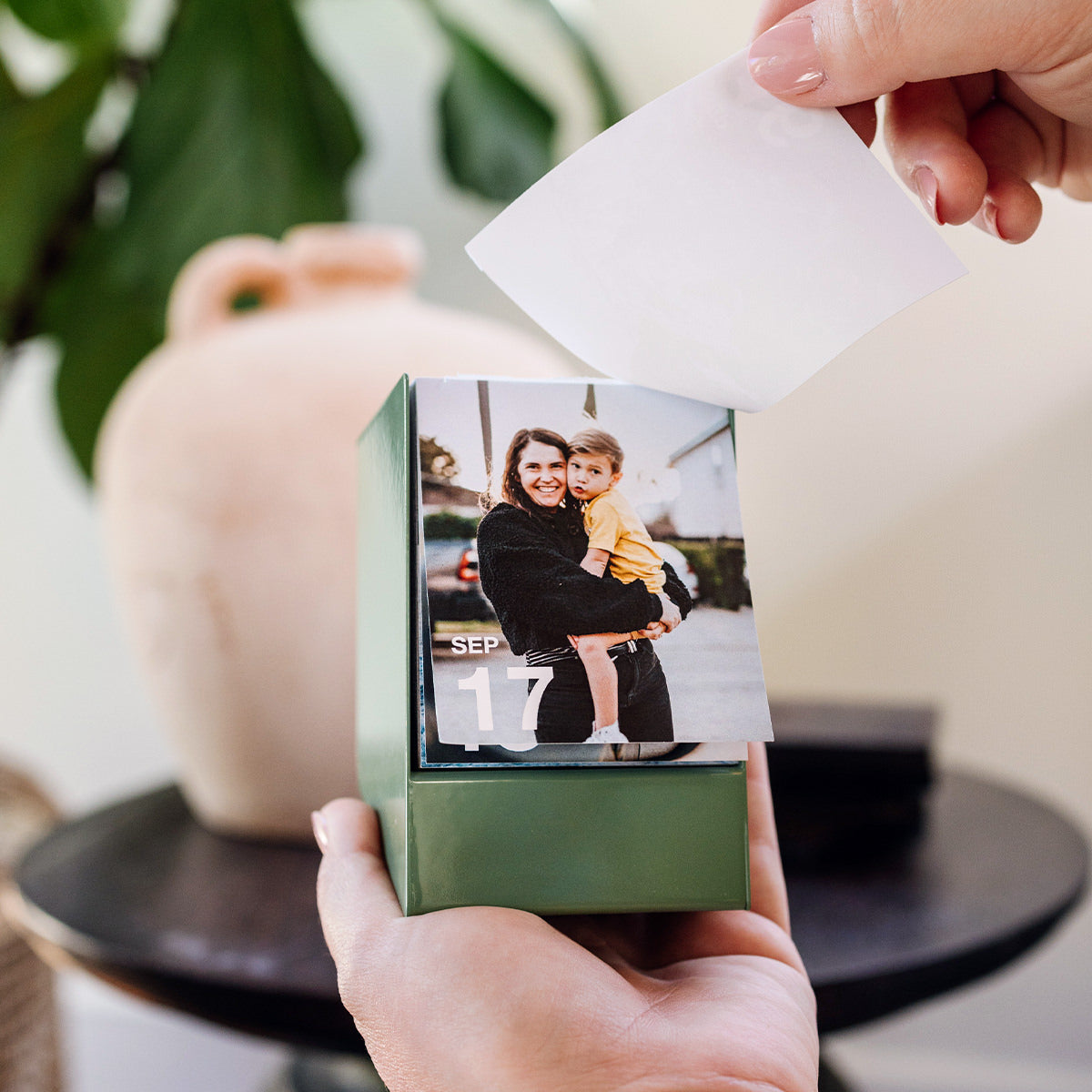
Daily Calendar only—365 prints neatly bound into a calendar block
-
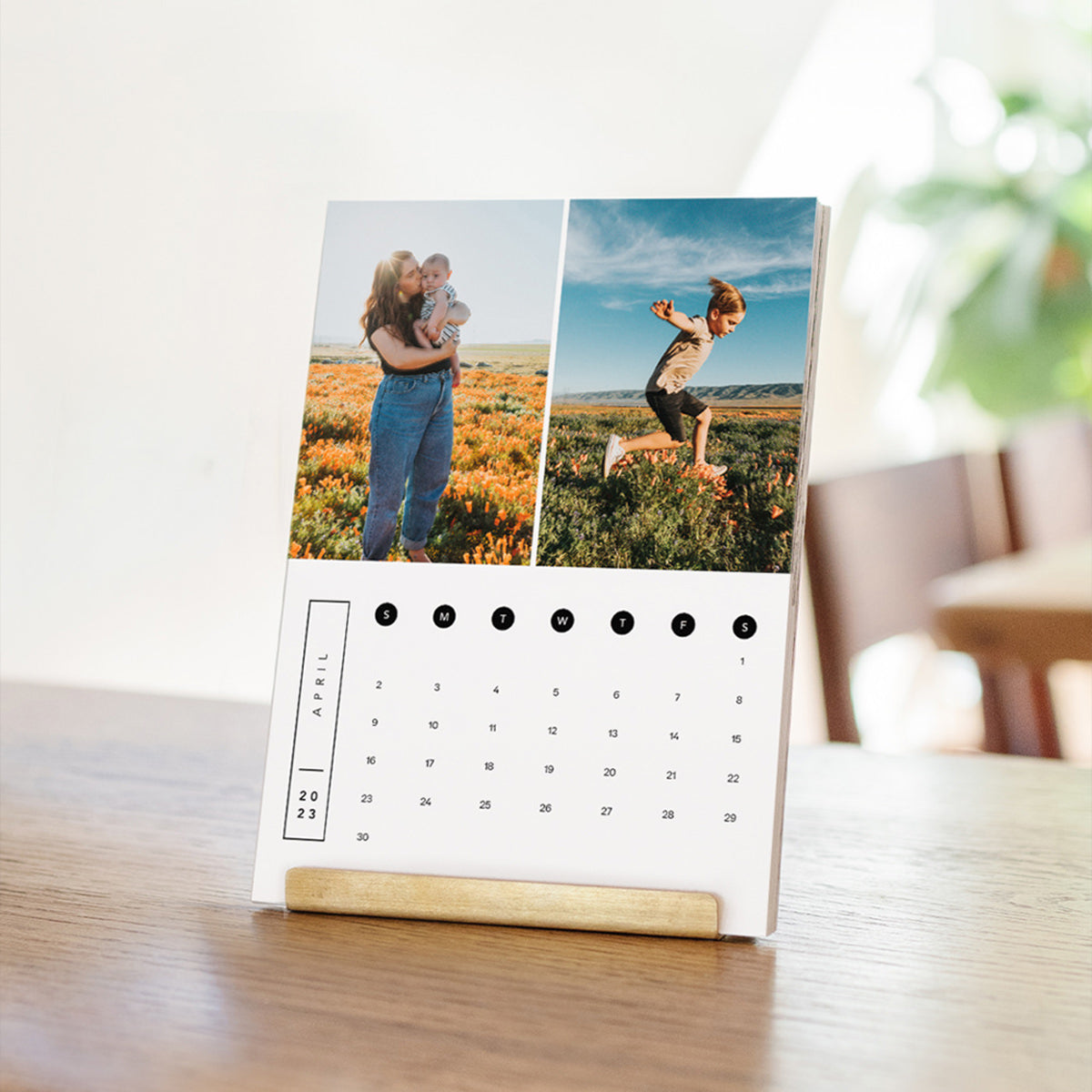
With Bamboo Stand—a sustainably made, simple display option.
-
With Signature Stand—a sleek steel display with room to store prints at the back of the stand.

Cropping
For Small Date, Split Date, and Block Date templates, we recommend keeping all important subjects at least 0.25” from the edge of your print. There will be a small amount of trim as shown in the preview.
Troubleshooting
If you have trouble ordering in the app or on the website, email us anytime at hello@socialprintstudio.com and we can help.